
Free images for your website: where to find them and how to use them
Good pictures make a small site look trustworthy. Here is where to get them for free, how to stay on the right side of the rules, and how to keep your pages fast.
On this page
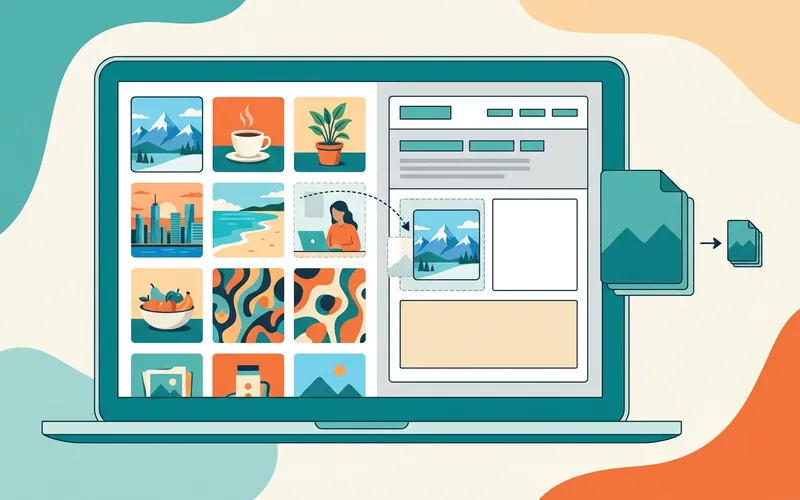
A website with no pictures feels unfinished. A website with blurry, slow or random pictures feels worse. The good news is that you can get great images for free, as long as you know where to look, what you are allowed to do with them, and how to prepare them before uploading.
Your own photos come first
Before you search any photo site, use what only you have:
- Your work. Finished jobs, products, a cake, a clean pool, a before-and-after.
- Your place. Your workshop, storefront, studio or van.
- You and your team, if you are comfortable with it.
Real photos build more trust than any stock image, because visitors can tell they are real. A modern phone, a window with daylight and a clean background are enough. Hold the phone level, tap to focus, and take several shots so you can pick the best one.
Only post photos of customers, their homes or their kids with their permission.
Free stock photo sites
For backgrounds, banners and general topics, free stock libraries are very useful. Popular ones include:
- Unsplash: high-quality photos under the Unsplash License.
- Pexels: photos and videos under the Pexels License.
- Pixabay: photos, illustrations and vectors under its content license.
Search with simple words that describe the feeling or scene you want ("tidy kitchen", "small bakery counter", "laptop on desk morning light"), not just your industry name.
What "free" usually means (read the license)
Each site has its own license, and they can change, so always read the current version. In general, these libraries let you use images for free on websites and marketing, often without credit. But they also have limits. Common ones are:
- You usually cannot sell the photo itself unchanged, such as printing it on a poster for sale.
- You should not suggest a person in a photo endorses your business.
- Photos showing logos, brands or recognizable buildings can need extra care.
- Some images on these sites are uploaded by people who did not own them. If a photo looks like it came from a famous brand or a news event, skip it.
Giving credit to the photographer is a kind gesture even when it is not required.
Avoid random images from a search engine's image results. Most of those belong to someone, and "I found it on Google" is not permission.
Pick images that fit your site
A few rules keep your site looking consistent:
- Same style. Choose images with similar colors and lighting.
- Same shape. Decide on one shape for each spot, for example wide images for page headers and squares for cards.
- Real meaning. Every image should help explain the page. A picture of a handshake on every page adds nothing.
- Readable text. If you place text over a photo, choose a calm area of the photo or add a dark overlay so the words stay readable.
Make images load fast
Big image files are the most common reason small sites feel slow, especially on phones. Speed matters to visitors and to search engines. Before uploading:
- Resize. Most website images never need to be wider than about 1,600 pixels. A photo straight from a phone is often 4,000 pixels wide or more.
- Compress. Free tools such as Squoosh reduce the file size a lot with little visible change.
- Use a modern format. WebP files are usually much smaller than JPEG or PNG at similar quality, and current browsers support them.
- Name the file clearly, such as "blue-pool-cleaning-phoenix.webp" instead of "IMG_4821.jpg".
Google's guide to image best practices explains more about how images appear in search.
Write helpful alt text
Alt text is a short description of an image. Screen readers read it aloud for people who cannot see the image, and search engines use it to understand the picture.
Good alt text describes what is in the image in plain words, in one short sentence:
| Weak alt text | Better alt text |
|---|---|
| image1 | Clean backyard pool after weekly service |
| bakery, cakes, best cakes Phoenix, cake shop | Three-layer chocolate birthday cake on a white stand |
| (left empty on a product photo) | Handmade leather wallet in brown, open to show card slots |
Do not stuff keywords into alt text. For purely decorative images, such as a background pattern, an empty alt text is fine so screen readers skip it.
Adding images in a free website builder
In Systeme.io, you add an image element to a page, upload your file, and fill in the alt text field in the element settings. Check how the page looks on a phone after adding images, because large images can push your main button too far down the screen. For more about getting found, see our SEO basics guide.
A quick image checklist
- Is it your own photo, or from a source whose license you have read?
- Is it resized and compressed?
- Does the file have a clear name?
- Does it have useful alt text?
- Does it look good on a phone?
Do that for every image, and your site will look more professional and load quickly.
Questions
Do I have to credit free stock photos?
Many free libraries do not require credit, but their licenses differ and can change. Read the license on the site where you downloaded the image. Giving credit is always a nice touch.
Can I use a photo I found on Google Images?
Usually not. Most images in search results are owned by someone else. Use your own photos, photos you have permission for, or images from a library with a clear license.
What image size is best for a website?
For most full-width images, around 1,600 pixels wide is plenty. Smaller spots, like cards or thumbnails, can be 600 to 800 pixels wide. Then compress the file.
Is WebP better than JPEG?
For websites, WebP files are usually smaller than JPEGs at similar quality, which helps pages load faster. Modern browsers support WebP.
Sources
Checked November 21, 2026. Prices and features change, so confirm on the provider's site.